

Chrome extension · Free
How SteamSage works
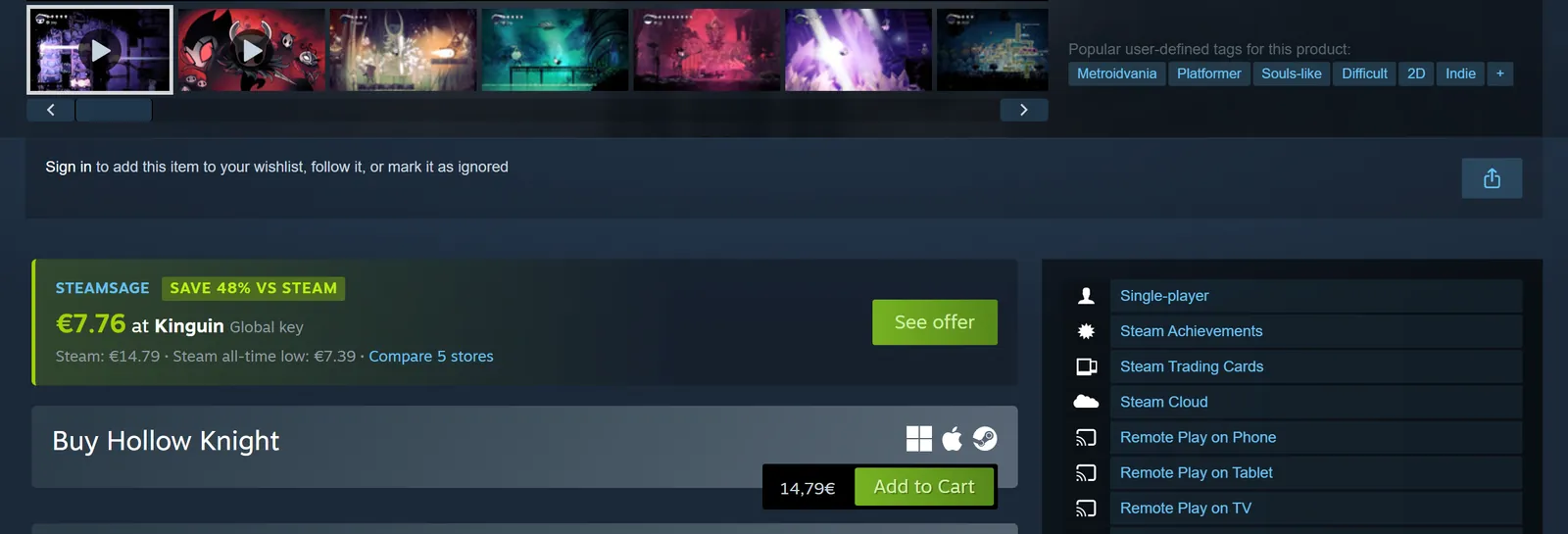
SteamSage is a free browser extension that checks, on every Steam game page, whether a key store sells the same game cheaper — and tells you right above Steam's Buy button. When Steam is already the best deal, it says so too, with Steam's all-time low, so you know whether to wait.
No account · No ads · Only works on Steam game pages
On a phone or tablet? SteamSage is an extension for your computer's browser: open this page on your computer to install it.
In short
-
Right where you buy
The panel sits inside Steam's page, above the Buy button. No pop-ups, no floating boxes.
-
Only keys you can use
A key counts only if it activates where you are: region-free keys, or keys for your region.
-
Quiet when there's no deal
If no key saves you at least 5%, you get one short line — or nothing at all.
-
Free and private
No account, no ads, no browsing history. It only reads the game's number from the page address.
Install it in 30 seconds
- 1
Add it from the Chrome Web Store
Open SteamSage's page in the Chrome Web Store, click Add to Chrome, then Add extension. It also works in Microsoft Edge, Brave, Vivaldi and Opera, which install Chrome Web Store extensions (Edge and Opera ask you to allow it once).
- 2
Pin it (optional)
Click the puzzle-piece icon in Chrome's toolbar and the pin next to SteamSage. Its icon opens the setting; you don't need it to see prices.
- 3
Open any game on Steam
Go to a game's page on store.steampowered.com. The panel appears above the Buy button as soon as the prices arrive, usually in under a second. Right after you install it, a welcome page opens with games that have a big saving right now, so you can see it in action.
What you'll see on Steam
SteamSage only speaks up when it has something useful to say. There are three cases.
1. A key store is cheaper
When a key that activates in your region costs at least 5% less than Steam, SteamSage shows a green panel with the saving and a button to the offer.
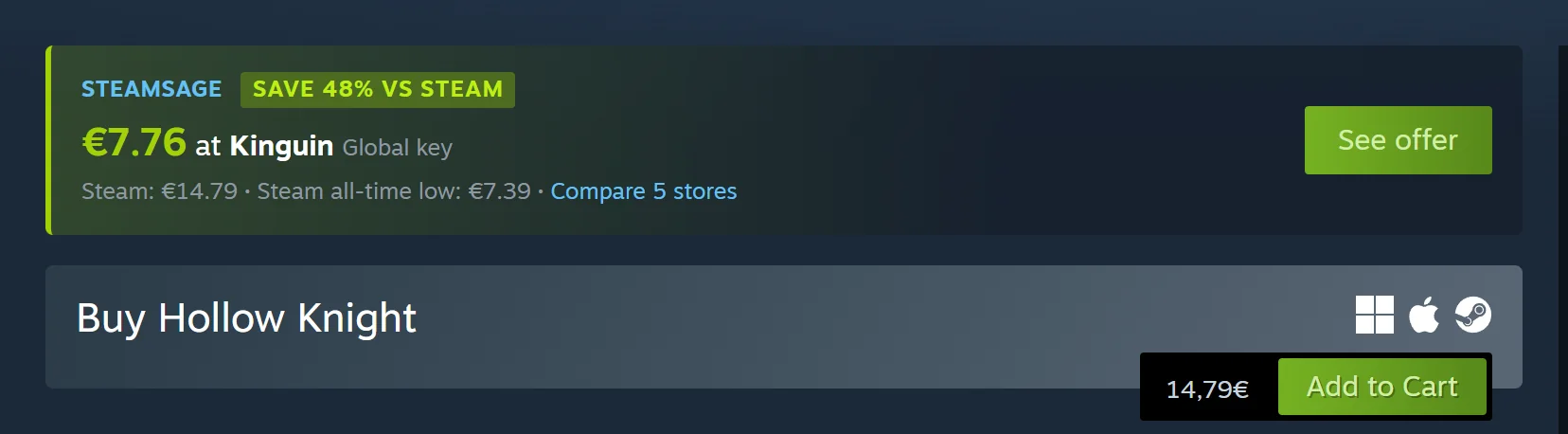
- 1 The saving against Steam's current price.
- 2 The cheapest key that activates in your region, and the store that sells it.
- 3 The key's region. “Global” keys work everywhere; regional keys only count where they activate.
- 4 Steam's own price and its Steam all-time low, so you can judge the deal.
- 5 “Compare 5 stores” opens the full comparison on steamsage.io: every offer, its region and the price history.
- 6 “See offer” takes you to that product on the store's website. You pay there, not us.
- 7 Steam's Buy box stays exactly as it was.
A price with ≈ in front was converted from euros (the key stores charge in euros), so it's approximate. Hover it for a reminder.
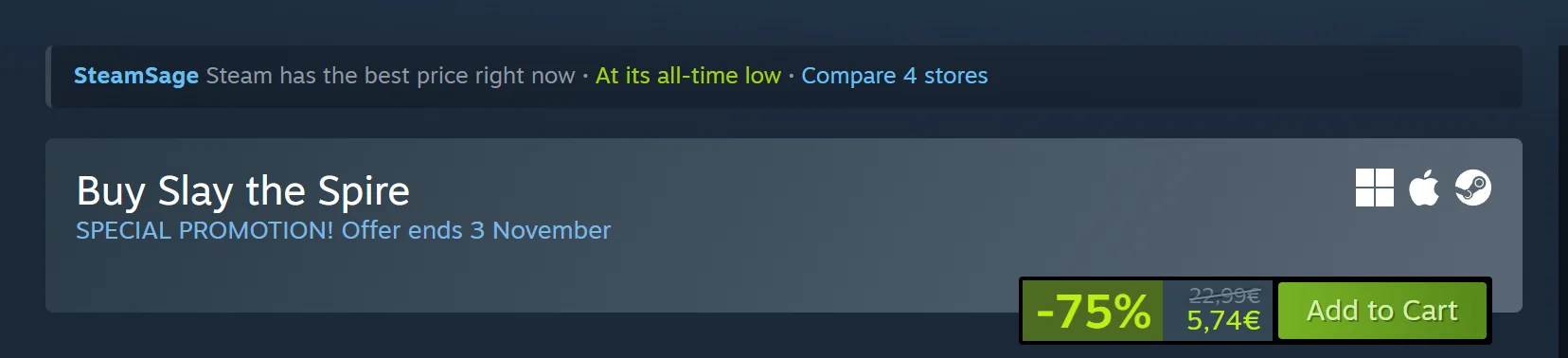
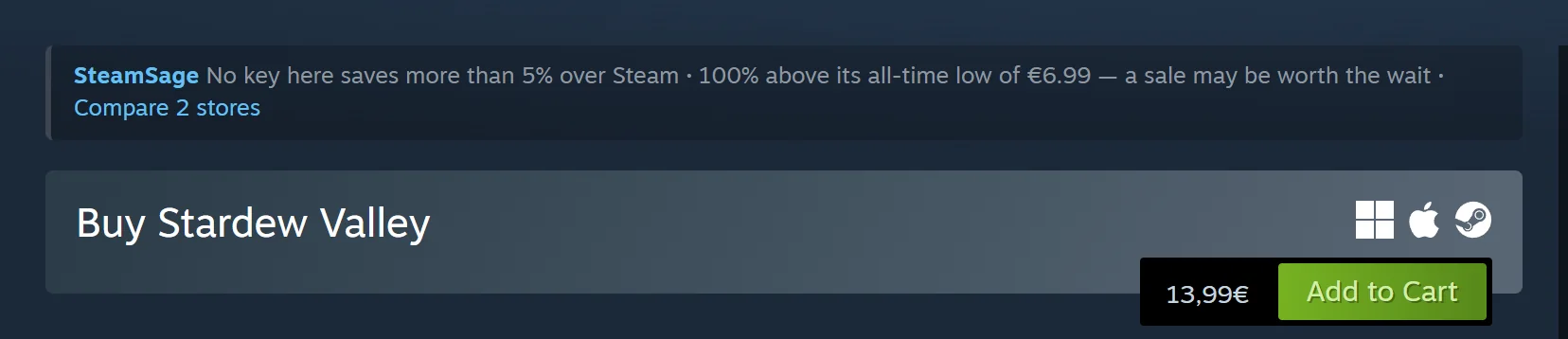
2. Steam already has the best price
Then there's no panel, just one quiet line with a hint based on Steam's price history:
3. Nothing useful to say
If we don't have a price we trust for the game — because it's free to play, not out yet, or no key store sells it — SteamSage adds nothing and the page stays exactly as Steam made it. It never shows errors or loading spinners. And if only key stores sell it (Steam no longer does), you'll see one line with the cheapest key.
One setting: key resellers
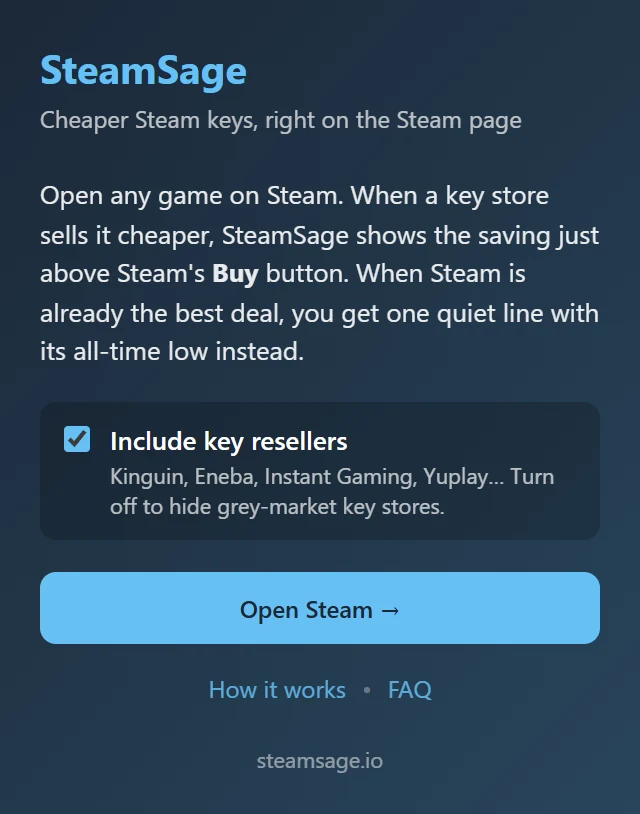
Click the SteamSage icon in Chrome's toolbar (or under the puzzle-piece icon) to open its only setting, Include key resellers:
- On (the default): SteamSage compares Steam with the key stores, as in the examples above.
- Off: it ignores the marketplaces and resellers (Kinguin, Eneba, Instant Gaming, Yuplay, G2A, GAMIVO) and only shows Steam's price against its all-time low.
Pages you have open update instantly, and with Chrome sync on, the setting follows you to your other computers.

Where the prices come from
The Steam page
The extension reads the game's number (AppID) from the address: store.steampowered.com/app/367520.
steamsage.io
Looks that game up in our price index, for your region and your currency.
The panel
The cheapest key you can activate, against Steam's price.
- Steam: from Steam's own store, for every game once a day in euros, dollars and pounds; the most visited ones several times a day.
- Key stores: Kinguin through its official API; Eneba, Instant Gaming and Yuplay through each store's public search. Prices of popular games are usually less than a day old, the rest of the catalogue a few days. Whenever someone opens a game — on steamsage.io or on Steam with the extension — older prices are refreshed in the background.
- All-time low: the history of Steam's price on its European store, from IsThereAnyDeal and our own daily snapshots.
- Your region and currency: worked out from your connection's country when you open the page, and not stored. Euros, dollars or pounds; other countries see dollars.
Always check the final price at the store before paying: it can change between our last check and your click.
Buying keys outside Steam: what to know
A Steam key is a code you redeem in Steam; once activated, the game is in your library like any other. Not all key stores are the same:
- Steam is the official store.
- Instant Gaming and Yuplay sell keys from their own stock.
- Kinguin, Eneba, G2A and GAMIVO are marketplaces: independent sellers list the keys and the store offers buyer protection, sometimes as a paid extra.
Tips
- Check the key's region before paying (SteamSage already does for the offers it shows).
- On marketplaces, pick sellers with many positive ratings.
- Redeem the key soon after buying, and keep the order email.
- Steam's refund policy doesn't cover keys bought in other stores: each has its own.
Privacy and permissions
- It only runs on store.steampowered.com/app/… pages. Everywhere else it does nothing.
- It reads one thing from the page: the game's number (AppID) in the address.
- It sends that number to steamsage.io to get prices. Your country decides the currency and region, and isn't stored.
- The storage permission is only used to remember the resellers setting.
- Clicks on “See offer” go through steamsage.io, which counts them anonymously (store, game and country): that's how stores pay the commission.
- No account, no ads, no browsing history, no selling of data.
Full details in the privacy policy.
How SteamSage stays free
Links to the stores are affiliate links: if you buy through them, the store pays us a small commission, at no extra cost to you. It never changes what you see: the best offer is always the cheapest one that activates in your region, and Steam is listed even though it pays us nothing. More on our About page.
Frequently asked questions
Is SteamSage free?
Yes, completely. There's no paid version and no account. It's funded by the stores' affiliate commissions, which cost you nothing.
Which browsers does it work in?
Google Chrome on your computer, and the browsers that install Chrome Web Store extensions: Microsoft Edge, Brave, Vivaldi and Opera. There's no Firefox, Safari or phone version yet.
Why don't I see the panel on a game?
When there's nothing useful to say (a free game, one that isn't out, or no prices), it stays hidden on purpose. If you think it should show: make sure you're on the game's page (store.steampowered.com/app/…), not your library or a bundle page; on games with an age check, it appears after you confirm your age; reload the page; and check in chrome://extensions that SteamSage is turned on. Other extensions that change Steam's pages can get in the way.
Does it slow Steam down?
No. It waits for the page to finish loading, makes one small request and adds a few lines.
Which currency are prices in?
Euros, dollars or pounds depending on your country; other countries see dollars. Prices converted from euros have ≈ in front.
Why can a key be so much cheaper than Steam?
Regional pricing, bundles and bulk deals, or a private seller on a marketplace. We explain it in why Steam keys are so cheap.
Does it work for DLC?
Yes, on each DLC's store page, when we have prices for that DLC.
Which languages is it in?
The panel is in English for now; prices are shown in your currency.
How do I uninstall it?
Right-click its icon and choose “Remove from Chrome”, or remove it in chrome://extensions. An optional page opens asking why.
I found a wrong price. What do I do?
Email [email protected] with the game and the store and we'll look into it.
Try it on your next Steam purchase
Free, no account, on every Steam game page.
Add to Chrome — it's free